
Alright, let’s just get to it. You want Magento 2.4.3-p1 (as of this article, Bitnami may update in the future) installed on your macOS Monterey machine, and you want to include Amazon ElasticSearch (now called Amazon OpenSearch) and MariaDB using Minikube. Well, I’m going to make it painless for you and get you up and running in no time. When we are finished, we will talk about development workflows in a second article so you can do local development. We’ll make sure to cover debugging as well.
First, install Homebrew if you haven’t already. Homebrew is a macOS package manager that makes, at least, my life more easy when it comes to managing packages and applications. Also as a prerequisite, if you have anything running on port 8443, well you’re going to either have to modify the instructions here or shut it off for now as well.
Homebrew Website (easy install on homepage):
https://brew.sh/
If you are using MacPorts, well, you can follow along and modify the instructions accordingly.
Next, we are going to install minikube, socat, and helm. socat will be used later for easy port forwarding for accessibility on your local machine. Before we install minikube, I’m going to recommend downgrading from 1.25.1 to 1.24.0 because of some issues that come up when starting minikube when configuring RBAC rules (according to some research I did, this issue is only present in 1.25 and has been raised to the minikube team):
So when using brew, to install an older version of minikube, you can try this in the terminal:
and if it isn’t found, then continue by installing a tap and extracting an older version (which is a repository of older versions I’d assume):
And then installing..
Also install helm and socat now:
Now start minikube. I’m highly recommending giving the VM substantial resources, I ran into a lot of problems with Pods not starting because of not enough resources with the defaults. If minikube crashes your machine as it did mine, you need to update Parallels manually (if you’re using Parallels). I leave you to figure that out.
I have a 16GB machine with 4 cores, so I gave the VM half of my machine. You may choose to adjust this:
Once minikube starts successfully, you can run:
This will open a nice dashboard with options like logs and terminal access of your pods and more. Right now though, it has no pods. Leave it running in the terminal and open up a new tab in your terminal.
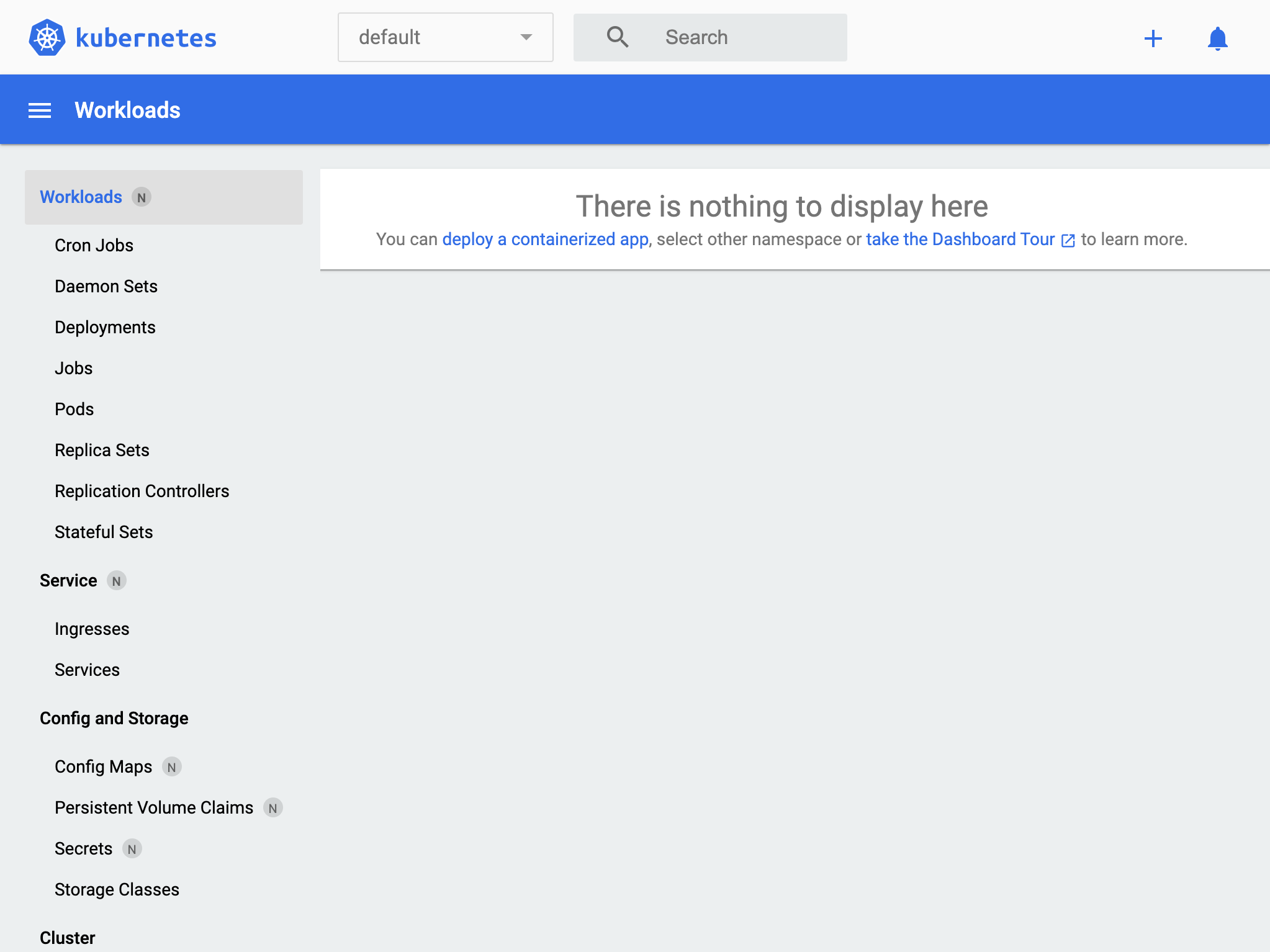
Helm Bitnami installation
Helm Bitnami installation
Now it’s time to install Magento. I had a lot of issues when I first started using the install command because I wasn’t specifying passwords, and then I was specifying passwords that Magento was rejecting because of complexity. If you use this command as is, it should work for you, but feel free to change the passwords or any other options you need. You can find a list of the options here:
https://github.com/bitnami/charts/tree/master/bitnami/magento/#installing-the-chart
Now for the command (notice it sets the admin url for magento as /admin):
You should see a response (if you do, great!):
And your Kubernetes Dashboard should look as follows.. Magento is installing, MariaDB is booting, etc etc.. :

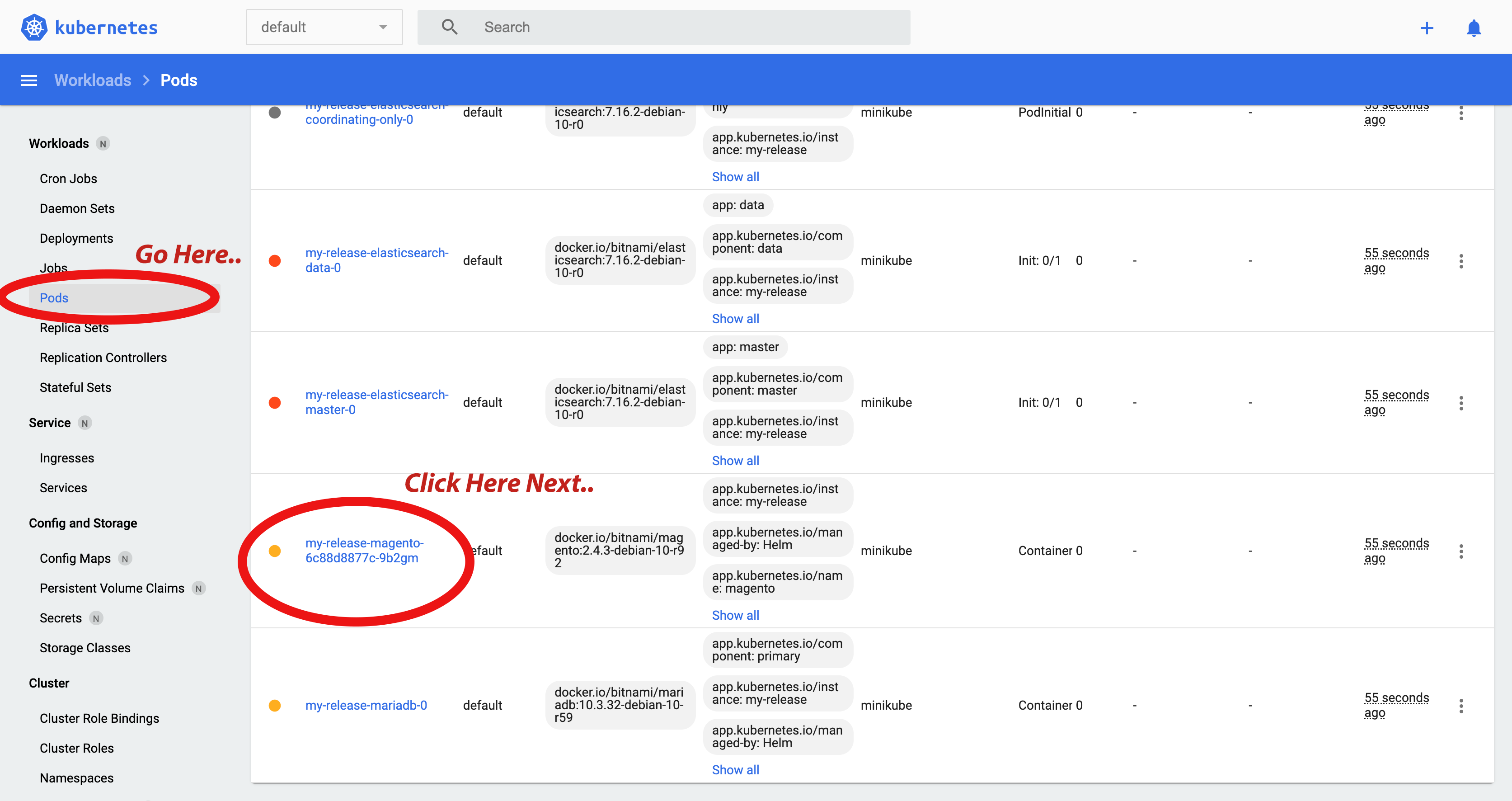
You can follow it progress by following these steps.. Click Pods, then find the my-release-magento pod (click image to maximize):
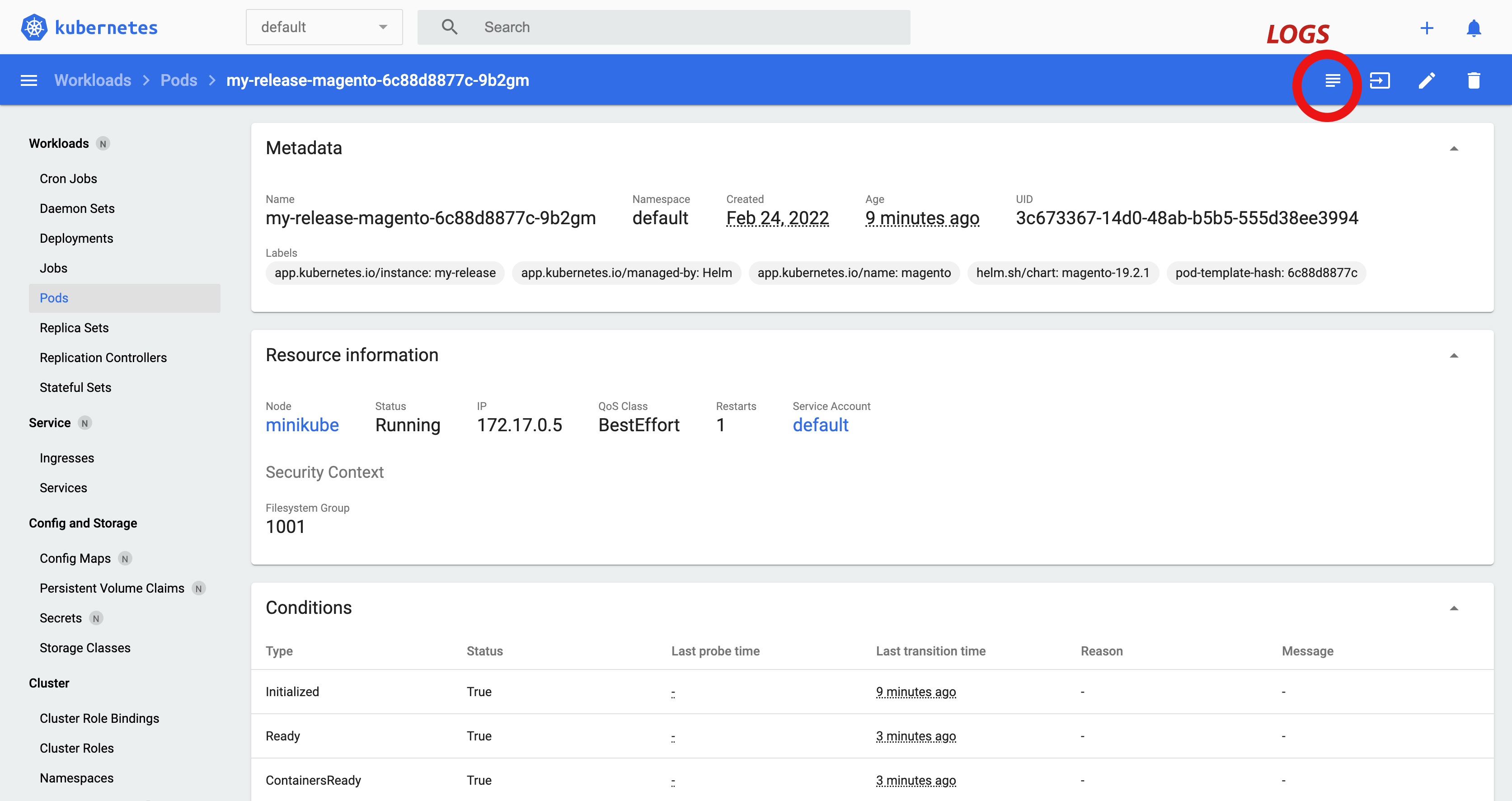
And then click the logs button in the top right corner to see what’s going on:
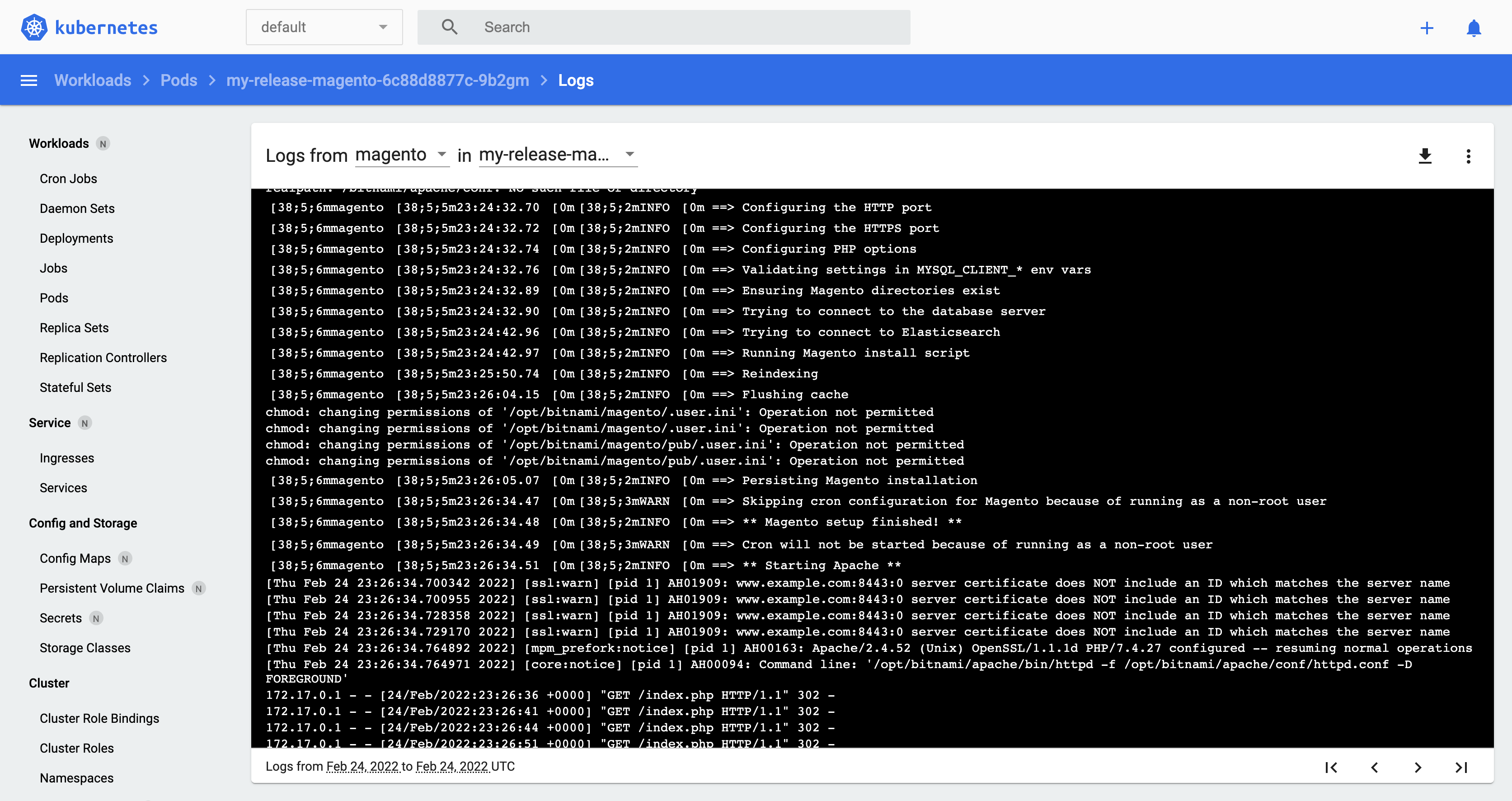
And you will see a log like this (hit refresh in your browser to update):
Go back to Workloads in the menu on the left-hand side, and eventually (about 7 minutes to install Magento for me), if all goes well, it should look like this:
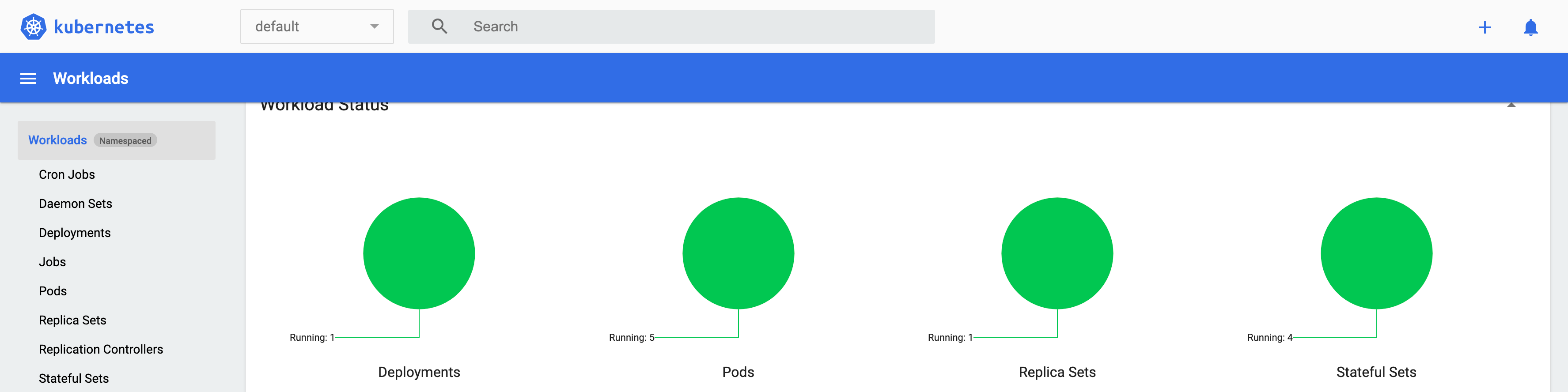
Great! Alot of green! Now you have successfully installed your deployment!
Now connect to it!
-
Magento Bitnami is now installed and running!
Connecting to Magento 2.4.3-P1
Now we connect to the installation. First, we are going to run a tunnel to the virtual machines, then we will edit the hosts file so it has an entry for “magento.local” and finally we will run socat to forward that tunnel to 8080 on our local machine (which is the port that magento was configured for by default).
Open up a new terminal tab and run the following (you might need to enter your sudo password for tunneling). You’re going to want to leave this running as you do your work:
Note the last IP in the route line:
Or open yet another terminal tab and run “minikube service list” and note the URL’s (with ports.. particularly the port related to 8443 for Target Port):
In this case, the IP is 10.211.55.9 and the port is 30085
Now we need to let your computer know that magento.local routes to your local ip. Add this line to the end of the file (use sudo when editing) /etc/hosts
Save and now we can run socat. We will tunnel all traffic from 10.211.55.9:30085 to 127.0.0.1:8080. Modify this command below to match your IP and port from above. You are also going to leave this command running while you do development.
-
Magento can now be accessed! Visit: https://magento.local:8080
-
You can also access the admin at: https://magento.local:8080/admin/
User: user
Pass: Magento12ab (unless you changed it)
Just fyi, you want to accept any security warnings for invalid certificates in Chrome.
Some Troubleshooting Tips
If you have trouble starting your Pods, your going to want to look at the logs, though sometimes things aren’t verbose enough. Although this is an exercise for the user and I wont go into detail here, you can indeed set the debug setting on each pod (mariaDB or Magento) when you are configuring the helm install command.
You can also access each pod and see whats going on inside (as long as its running) by going to the live terminal (next to the logs option).
Make sure your pods have enough resources, and also make sure Parallels is up to date.
If you lose your passwords, you can find them in the Dashboard if you look hard enough. Try going to your pod and then scrolling down until your find “Secret” and reveal it.
If you need to delete everything (and I do mean EVERYTHING) and start over, you can issue the command:
Then you can start fresh with a new helm install and modify the parameters accordingly.
In The Next Article:
I will cover the developer workflow when dealing with minikube and kubenetes pods as well as how to hook your installation into a debugger to use which PHPStorm or your favorite IDE.